
Feature: Spin the Wheel
📱 What is this feature about?
The player taps a spin button on a coloured wheel of segments. The wheel spins for a few seconds and lands on one segment, picked randomly with weighting from the segment’s probability. The result is shown on screen.
🚀 How does it work? (Mechanic):
The screen shows a heading and a wheel built from the configured segments.
The player taps the spin button; the wheel spins for ~4.5 seconds with several extra loops and decelerates to a stop.
One segment is selected at random using each segment’s probability weight (uniform if no probabilities are set).
The selected segment’s result appears: coin icon and amount if it’s a currency reward, otherwise the segment image and its completion text / title.
The activity is reported complete (with the coin reward, if any). Next appears, and the player taps it to continue.
If the player returns to this activity after already completing it, the wheel is replaced with an “Activity already completed” screen so they cannot re-spin.
💡 What can be configured changed easily?
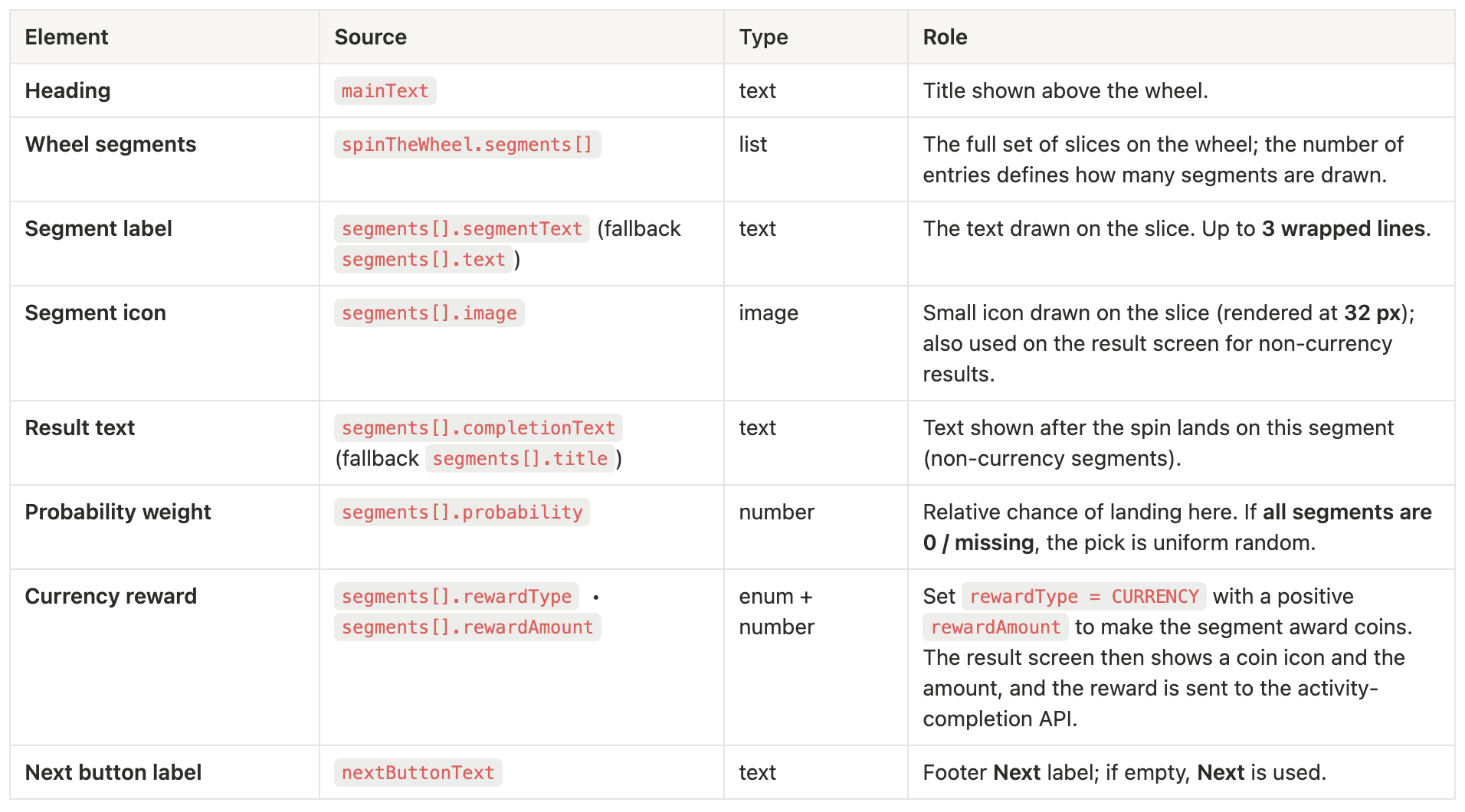
Not configurable:
Spin timing — fixed 4500 ms duration, 2–4 random extra loops, ease-out cubic deceleration (SPIN_DURATION, MIN_EXTRA_LOOPS, MAX_EXTRA_LOOPS in components/spinTheWheel/index.tsx).
Wheel size — width is min(window.innerWidth, 400) px, hardcoded.
Frame colour — the green/orange frame around the canvas is wired to green by the calling component; CMS does not toggle this.
Segment colours — two alternating gradients (green → orange → green …) cycle through segments. No per-segment colour from CMS.
Segment label style — always 15 px Arco, dark green (#00441F), centred, max 3 lines, wrap width ≈ 90 % of the radius.
Result screen — coin path — if rewardType = CURRENCY and rewardAmount > 0, the result is always coin icon + amount, regardless of segments[].image / completionText for that segment.
Result screen — image size — segment image is rendered at 170 px wide on the result screen.
“Activity already completed” copy on re-entry and “Reward could not be processed” copy on a credit error are fixed strings in components/digital/spinTheWheel/index.tsx.
One spin per session — once a result is shown, the wheel is replaced by the result view; there is no re-spin option from CMS or UI.
RNG — uses crypto.getRandomValues where available, falls back to Math.random(); not configurable.
Activity completion call — fired automatically by the page (digital/[digitalId]/page.tsx) with the spin’s coin amount; the segment’s reward goes into spinRewardAmount on the completion API request.
Two things worth flagging:
bgColor prop: the inner canvas component accepts 'orange' | 'green', but the digital wrapper always passes "green". So the orange frame asset exists in code but is not reachable from CMS. I documented this under Not configurable — happy to drop it if you'd rather hide implementation detail.
Reward source of truth: the coin amount sent to the activity-completion endpoint comes from getSegmentCoinAmount(segment) (rewardType === 'CURRENCY' AND rewardAmount > 0). Other rewardType values exist in the type union (BADGE, NO_REWARD, SPIN_THE_WHEEL, WALLET_REDEMPTION) but the result screen only special-cases CURRENCY. Let me know if you want a row added for "non-currency reward types — currently rendered as a normal image/text segment".
Website: Ranger Buddies Home
📱 What is this Website about?
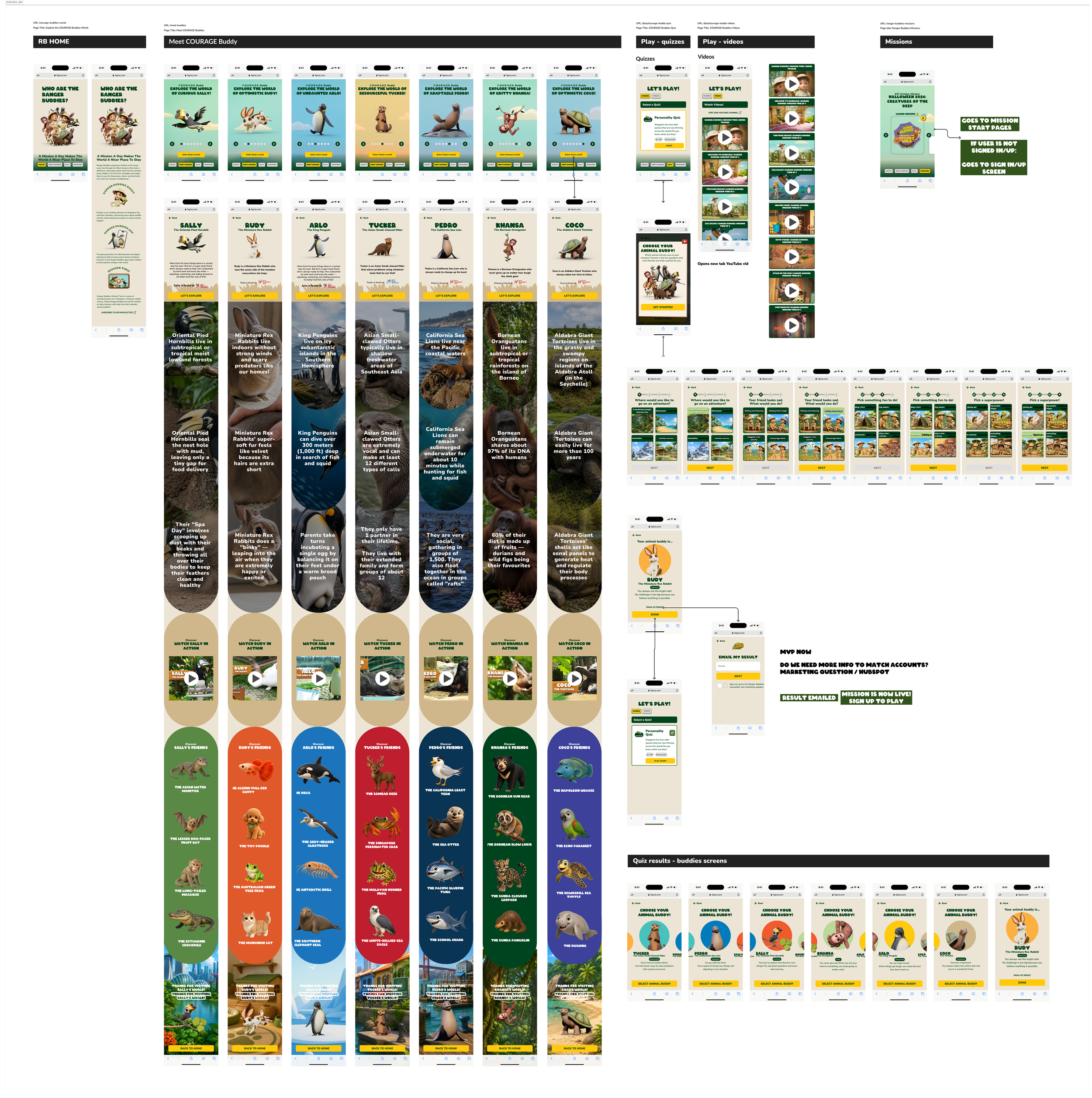
Ranger Buddies Home is the official website introducing the Ranger Buddies universe. It helps visitors discover the seven animal buddies through dedicated character pages, while learning about their unique personalities, habitats, and conservation messages.
The site's primary purpose is to educate and inspire children and families. Its secondary purpose is to encourage users to sign up, participate in Ranger Buddies missions, and become part of the community.
🚀 How does it work? (Mechanic):
Users discover the website through marketing touchpoints such as QR codes, posters, partner websites, social media, and other campaigns.
Meet buddies: Explore the seven Ranger Buddies and learn about each animal's personality, habitat, special abilities, and the values they represent.
Play:
Watch Ranger Buddies videos on YouTube to enjoy stories, adventures, and educational content.
Take the Ranger Buddies Personality Quiz to find out which of the seven animal buddies you're most like. Your personalised results are sent via email, where you'll also be invited to sign up and start completing fun Ranger Buddies missions across Singapore.
Missions: browse and access current Ranger Buddies experiences and partner missions, such as the KFC digital missions, with more adventures added throughout the year.
➡️ Full flow & screens:
Activity: Drag and Drop
📱 What is this Activity about?
Players drag picture items from around a scene onto target spots on the scene. Some items belong on the scene and some don't — only the correct items stay where they're dropped, while wrong drops bounce back to where they started. The activity ends when enough correct items have been placed.
🚀 How does it work? (Mechanic):
The screen shows a background scene with items scattered around it and one or more target spots.
The player drags an item toward a target spot.
If the item belongs there, it snaps into place; if not, it shakes and returns to where it started.
The UI reacts with a happy or sad message after each drop.
Once enough correct items are placed, the player taps Next, sees a snapshot of their finished scene, and moves on.
💡 What can be configured changed easily?
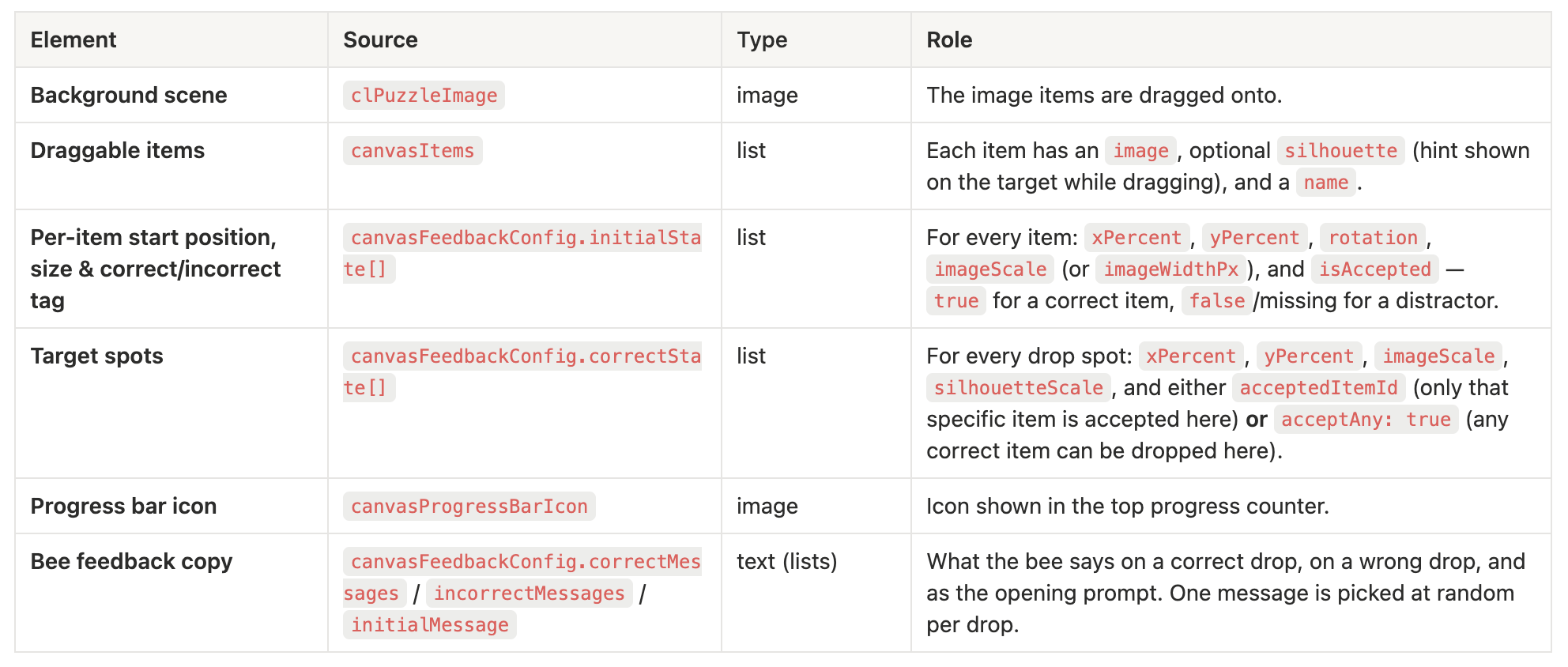
Not configurable:
Drop mode is inferred from the data, not toggled with a flag:
Assigned slots — if every correctState spot has an acceptedItemId, each item only fits its own spot.
Free slots — if correctState spots use acceptAny: true, any item flagged isAccepted: true can be dropped into any of those spots.
Snap-back on wrong drop — wrong drops shake for 500 ms and return to the item’s start position (SHAKE_ANIMATION_DURATION_MS in constants.ts, dropOutsideBehavior: 'return' in ActivityCanvas.tsx).
Required correct count equals the number of target spots (correctState.length); it can’t be set independently in CMS.
Item base size is min(rendered image width, height) × 0.1 (BASE_SIZE_RATIO); the CMS imageScale multiplies this base.
Fallback feedback strings — “Great choice!” / “Try again!” / “Drag items into the pot!” are used when the CMS message lists are empty (canvasHelpers.ts).
Completion flow — once the goal is reached, Next captures a screenshot of the scene (with the Ranger Buddies logo) and opens a preview frame with a Save button before navigating away. This whole step is hardcoded in ActivityCanvas.tsx.
Activity: Scavenger Hunt
📱 What is this Activity about?
Users participate in an interactive AR scavenger hunt by scanning image posters placed around the venue. Each poster unlocks a specific animal species in AR. By scanning multiple posters, users progressively collect different species, completing a full set as they explore the space.
On the back-end we decide what image will trigger the unlock and probability of each animal to be unlocked. Animals will appear randomly (similar to Google Pay)
An AR scavenger hunt riddle: the player sees a board of mystery species (silhouettes) and a scan counter. Tapping Scan opens AR, where pointing the camera at a partner-activation poster reveals one of the species at random (weighted by rarity). The species is added to the player’s collection and the scan counter goes down. The activity continues until the player collects every species or runs out of scans; collecting them all unlocks the theme prize.
🚀 How does it work? (Mechanic):
On entry, the client loads two things in parallel: all possible species for this riddle (/api/theme/species) and what this user has already collected for this riddle + activity (GET /api/riddle/scavenger-hunt).
The Species Board shows a grid of hexagons: collected species are shown in colour with the count of how many times the player has caught them, uncollected ones show only a silhouette. A binoculars badge shows scanChances − totalScansUsed. A coins badge shows total points (hidden when isAllSpeciesCollectionRequired is on).
Footer button reads SCAN while there are species left and scans remaining, NEXT otherwise.
Tapping SCAN runs the last-species fairness check: if the player is one species away from finishing, the client first checks /api/theme/theme-prize-check. If the prize is no longer available (total or daily cap reached), the last missing species is excluded from the next draw so the player can’t complete the set.
The client picks one species using a weighted random over the (filtered) species pool: each species has a probability; the draw is proportional to that weight. The previously caught species is also excluded so two consecutive scans don’t return the same one (“without-pity”).
Before opening AR, the client POST /api/riddle/scavenger-hunt with speciesId, attemptId, riddleId, activityId, themeKey. The server:
creates an initial scan allowance with scanChances if the user has none yet,
returns 403 if remaining scans are 0,
in one DB transaction, creates the speciesOnProfile row and records a SCAN_USED transaction.
The client redirects to arLink with a base64-encoded data payload (foundBirds: [predictedSpecies], attemptId).
AR returns to the same screen with ?data=.... The client decodes it, refreshes the collected list from the server, then shows the Species Detail view with the success title, image, rarity badge, and long description.
From Detail, NEXT goes back to the Board to scan again. When every species is collected, the client calls createThemePrize, fires the scavenger_hunt_all_collected analytics event, and the footer button on the board changes to NEXT to leave the activity.
If scans run out before everything is collected, the player simply stops scanning; pressing NEXT moves on without the prize.
💡 What can be configured changed easily?
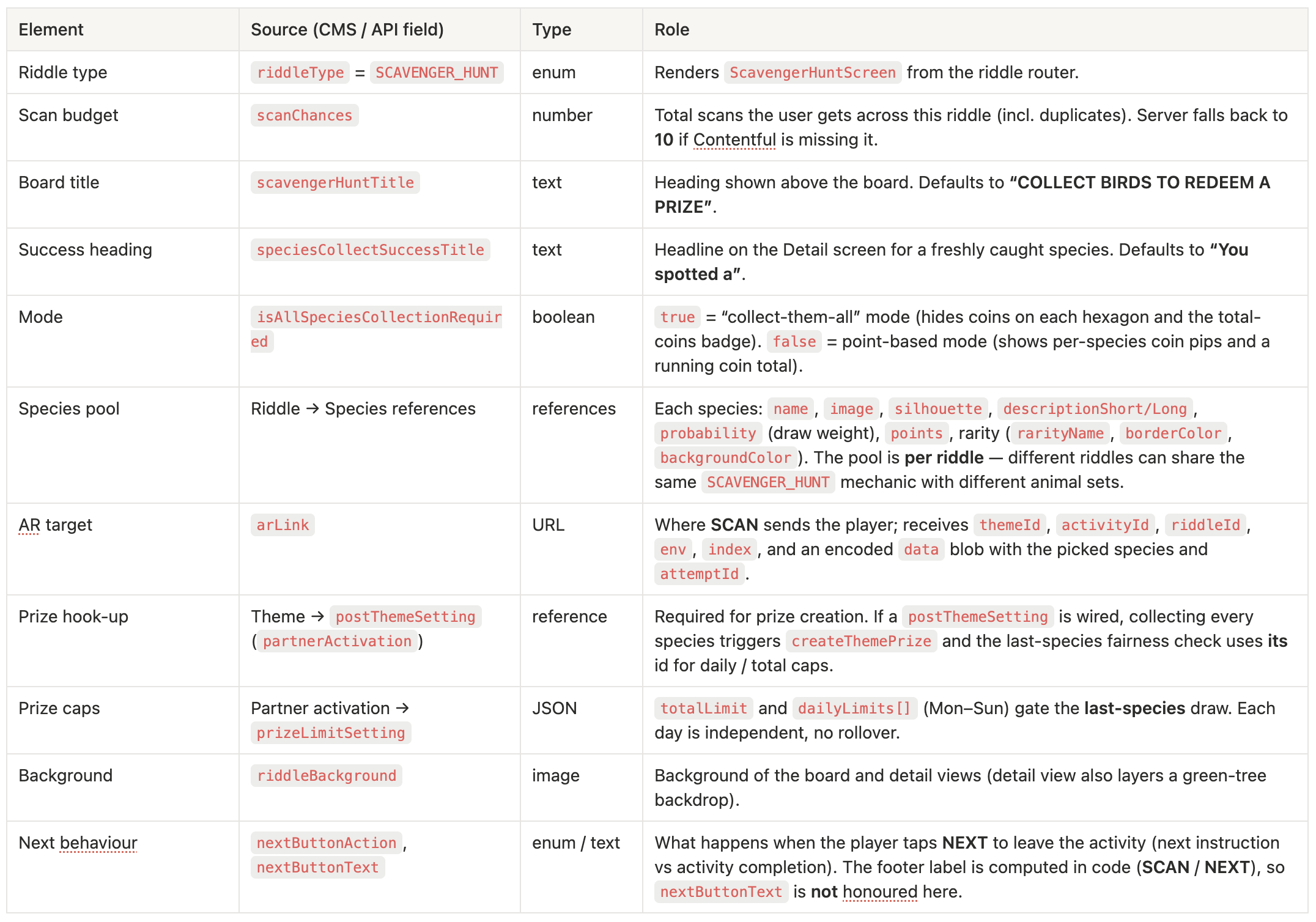
Not configurable:
Layout & visuals — grid hexagons, badges, success/detail layout, and the “Number Collected!” label on the detail view are hard-coded.
Coin imagery — binoculars (/assets/binoculars.png), tilted coin (/assets/tilted_coin.png), and per-species coin pips (/assets/coin_icon.png) are baked into the component; only the count comes from species.points.
Draw algorithm — weighted random by probability, with the previously caught species excluded (“without pity”). Outside the last-species fairness check, no other pity / streak rules are applied.
Last-species fairness rule — only triggers when exactly one species is missing. Earlier states (e.g. “three to go, prize gone”) still allow normal draws.
Server fallback for scanChances — if the Contentful riddle has no scanChances, the server seeds 10 for that user/riddle. Changing scanChances in CMS later does not retro-update users who already have an INITIAL allowance row.
Duplicate scan tolerance — the badge counts all scans (including duplicates) against scanChances, so a player who keeps catching the same species can exhaust their budget without filling the board.
Prize awarding — always tied to theme.postThemeSetting; without it the screen still works as a collection game but no prize is created and the all-collected analytics event is not fired.
Persistence via URL — the AR → board hand-off uses a base64-JSON ?data= parameter. Refresh / share of that URL surfaces the same “new bird” screen, but the DB row is the source of truth and won’t be duplicated.
Per-instance CMS id — userDefined:ID documents the riddle type (SCAVENGER_HUNT). The Contentful entry id for a specific hunt is the riddleId route param / Riddle.id.
Activity: Colouring Sheet Selfie
📱 What is this Activity about?
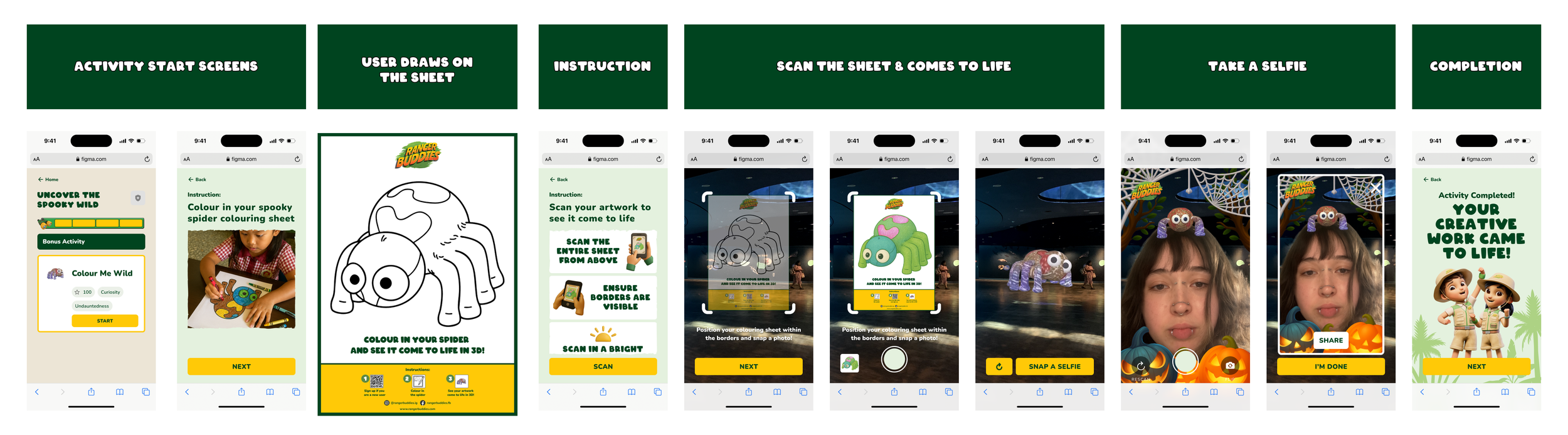
Kids receive a coloring sheet featuring an animal species and bring it to life with their own creativity. Once finished, they scan their artwork using the Ranger Buddies web app to see their one-of-a-kind animal appear in augmented reality on their device. Kids can then pose, explore, and snap a selfie with their very own animated animal creation.
🚀 How does it work? (Mechanic):
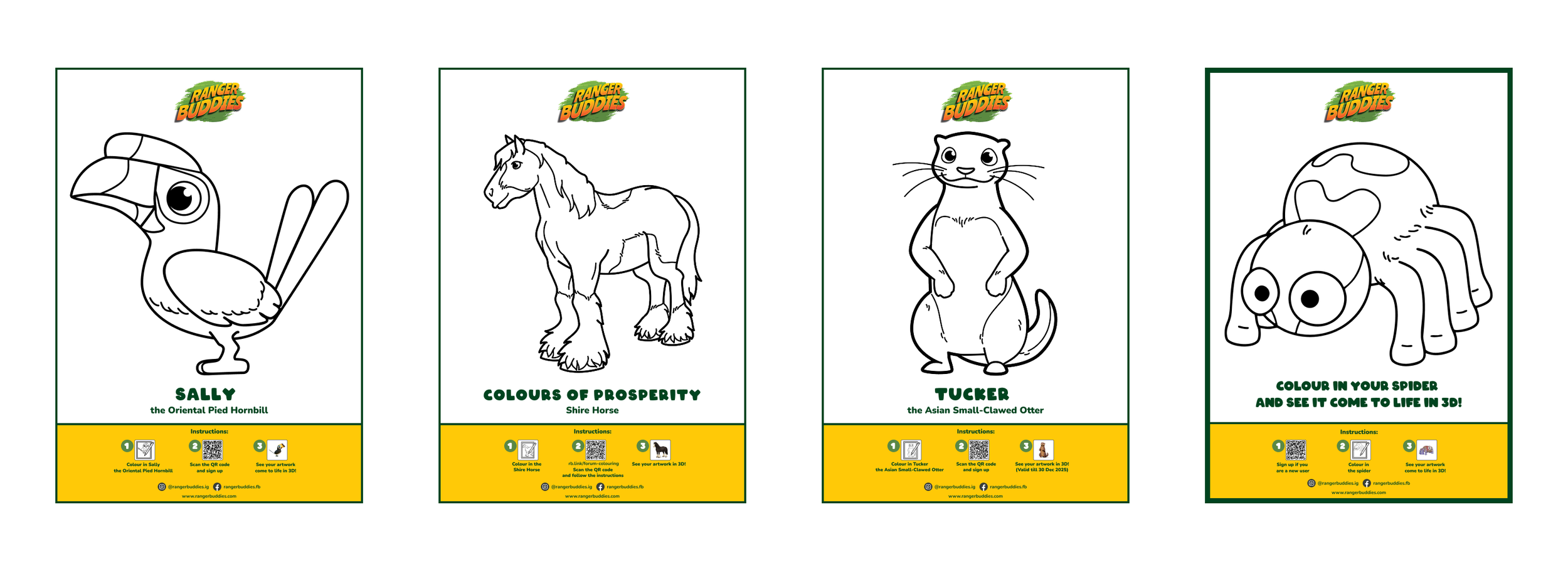
Users are given a printed template of an animal to decorate in their own style.
After completing it, they use the platform to capture the drawing, which is then processed and transformed into a digital 3D version.
This version appears in an interactive AR view on their device, allowing them to move around it, interact with it, and take photos together.
Users take photos/selfies with their creation and they have an option to share via the Share button.
➡️ Full flow & screens:
✏️ Colouring sheet versions:
Activity: Slider
📱 What is this Activity about?
Players explore a short animated story by moving a slider along a track. Three separate video clips are layered and crossfaded so the scene smoothly shifts from beginning through middle to end. A caption can change as the visible segment changes. The player must move the slider at least to a configured position on the track before Next unlocks.
🚀 How does it work? (Mechanic):
Three videos load and play in the background (muted, looping) while the slider starts at the left.
The player drags the slider along the track; if autoplay is enabled for this riddle, the slider can also advance on its own along a timeline built from the three clip lengths.
The view crossfades between the first, second, and third clip based on slider position — it does not scrub a single file by timecode.
Optional labels can sit under the track; a text caption shows the description for whichever segment is most visible.
When the slider reaches the required threshold, Next becomes enabled; the player taps Next to continue.
💡 What can be configured changed easily?
Not configurable:
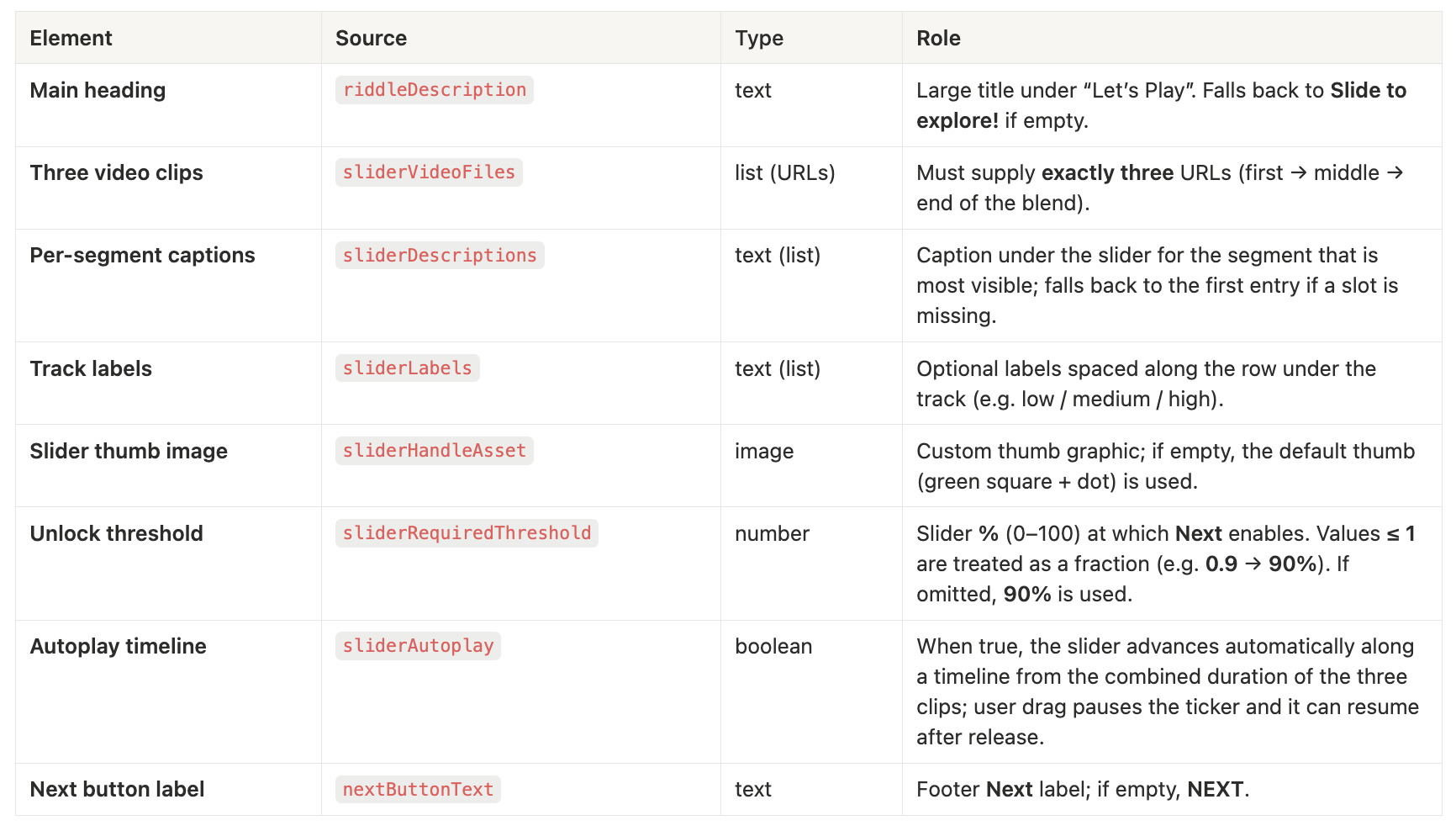
Exactly three videos — if sliderVideoFiles does not have three entries, the slider is not rendered.
Starting position — slider always begins at 0%; CMS cannot set a different default on this screen.
Blend curve — crossfade uses a fixed ease-in-out curve and fixed 0–50% / 50–100% segment boundaries between the three layers.
Playback — all three clips run muted and looped for motion while visible.
Chrome copy — Let’s Play above the title and Back on the top control are fixed strings in code.
Activity: Stuck In the Mud
📱 What is this Activity about?
Users navigate a maze-like AR environment using a joystick to control a car, collecting scattered trash while avoiding walls and obstacles. The activity concludes once all trash is collected, after which users are taken to a reward screen.